
Disclosure: DeDanix builds DeDanix Expiry, Batch & Recall for WooCommerce. This is a practical workflow guide, not a substitute for food-safety, pharmaceutical, legal or regulatory advice.
WooCommerce can tell a store how many units are in stock. It does not automatically tell staff whether time-sensitive products are still appropriate to sell. For food, supplements, cosmetics and other date-sensitive catalogs, a basic expiry workflow makes the risk visible before a customer reaches checkout.
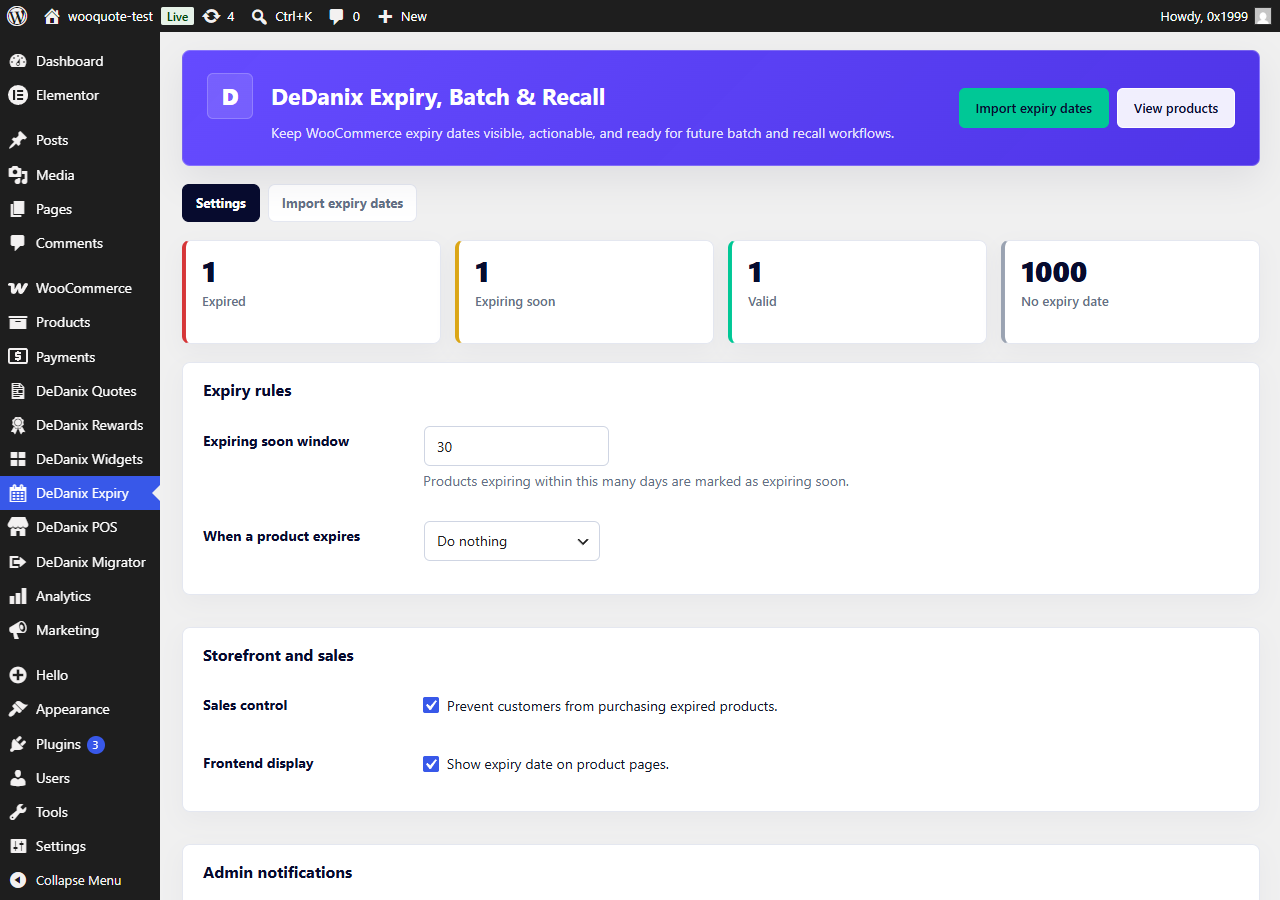
1. Record an expiry date where it belongs
Add the expiry date to the WooCommerce product or variation that it describes. If a variation can expire separately, test that the date is stored at the variation level rather than relying on a parent-product assumption.
2. Make risk visible to staff
The useful status groups are simple: expired, expiring soon, valid and missing an expiry date. Use a dashboard and Products-list filters so the store can find exceptions without exporting a spreadsheet first.
3. Import carefully when the catalog is large
A CSV workflow should identify products by SKU or product ID, use an unambiguous YYYY-MM-DD date and preview changes before applying them. Test a small file first, then reconcile any invalid rows.
4. Decide what happens at expiry
Stores should choose an explicit action: block purchase, mark a product out of stock, move it to draft or handle it through a documented internal process. The choice depends on the product and the operation; the important part is that it is not accidental.
Where DeDanix Expiry fits
DeDanix Expiry, Batch & Recall for WooCommerce Free tracks one expiry date per product or variation, adds dashboard/list visibility, supports CSV import by SKU or product ID, can prevent expired purchases, and can optionally mark expired products out of stock or move them to draft.
It is a focused expiry layer, not an ERP or a multi-batch recall system. See the product page and test the workflow with representative products before enabling it in a live catalog.